0 Build Portal Code by Giving AI the Situation and Logs
Give the AI what you want and what happened, then let it handle the code and investigation
When writing Portal scripts in TypeScript, you can hand most of the actual programming work to AI.
AI is especially good at looking up function names, matching types, adding logs, and narrowing down causes.
In exchange, there is information that humans need to provide.
- What you want to do.
- Which map, which object, and which timing you are talking about.
- What happened in the actual game.
- What appeared in the logs.
If this information is vague, the AI may produce code that looks plausible but does not match the real Portal situation.
If you provide the phenomenon and the logs clearly, AI becomes a very reliable partner.
This chapter uses an AI environment with BF6 Portal TypeScript MCP as an example, but the coding conversation style itself works with Codex and with other AIs too.
1 Role Sharing with AI
Separate what AI can handle from what humans should observe.
| Role | Owner | Details |
|---|---|---|
| Decide the goal | Human | Example: "I want to spawn an Apple in front of the player" |
| Provide conditions | Human | Map name, object name, trigger timing |
| Write code | AI | TypeScript implementation, Portal API calls, log additions |
| Look up the SDK | AI | Use MCP or type definitions to confirm functions, types, and enum candidates |
| Test in-game | Human | Register the code in Portal and verify it in-game |
| Read logs | AI and human | Provide PortalLog.txt and narrow down the cause |
| Fix code | AI | Form a hypothesis from the logs and modify the code |
Humans do not need to memorize every API from the beginning.
However, humans do need to observe and pass along what they want to happen and what actually happened.
It is fine to let AI write the program.
But if the situation you give to AI is sloppy, the conversation will wander.
That is the one place where cutting corners will cost more later.
2 What Is BF6 Portal TypeScript MCP?
BF6 Portal TypeScript MCP is an MCP server that lets AI development environments inspect Portal SDK type information.
Repository:
If you tell the AI, "If you do not know a Portal API, use MCP to check it before writing code," the AI can write code while referring to SDK information instead of making you search index.d.ts every time.
Think of MCP as a dictionary you give to the AI.
Rather than something humans directly operate and memorize APIs from, it is easier to think of it as a tool for telling the AI, "If you do not know something, look it up with MCP."
However, MCP alone does not reveal real in-game behavior.
Humans still need to provide what happened in-game and what appeared in the logs.
If you get stuck on MCP setup or usage, it is fine to ask the Codex AI directly.
I want to set up bf6_portal_typescript_mcp.
Please look at my current settings screen and error, then tell me what is missing.
If there is anything unclear about Portal APIs, use MCP to look it up before answering.
When asking AI, include the error message, what you entered in the settings screen, and the SDK folder location.
That will make the conversation much faster.
3 Configure the MCP Server in Codex App
This section is a configuration example for Codex App.
If you use another AI development environment, adapt this to that environment's MCP setup flow.
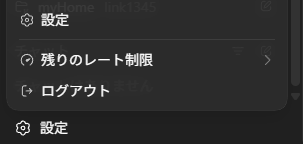
First, open settings from the lower-left menu in Codex App.
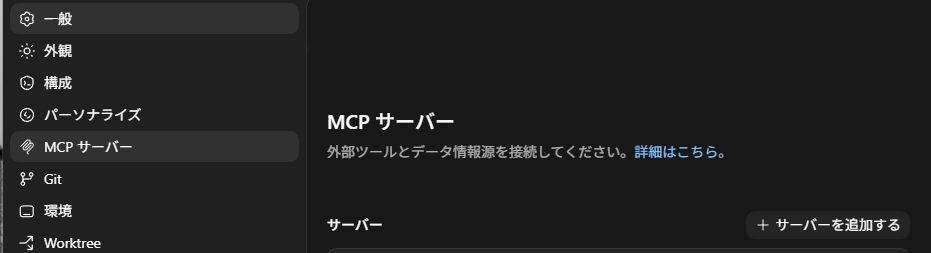
In the settings screen, select "MCP Servers" from the left menu and press "Add server."
On the custom MCP setup screen, enter the following.
| Item | Example |
|---|---|
| Name | bf6-portal-typescript-mcp |
| Type | STDIO |
| Launch command | npx |
| Argument 1 | bf6-portal-typescript-mcp@latest |
| Argument 2 | mcp |
| Argument 3 | --sdk_path |
| Argument 4 | /path/to/bf6-portal-sdk |
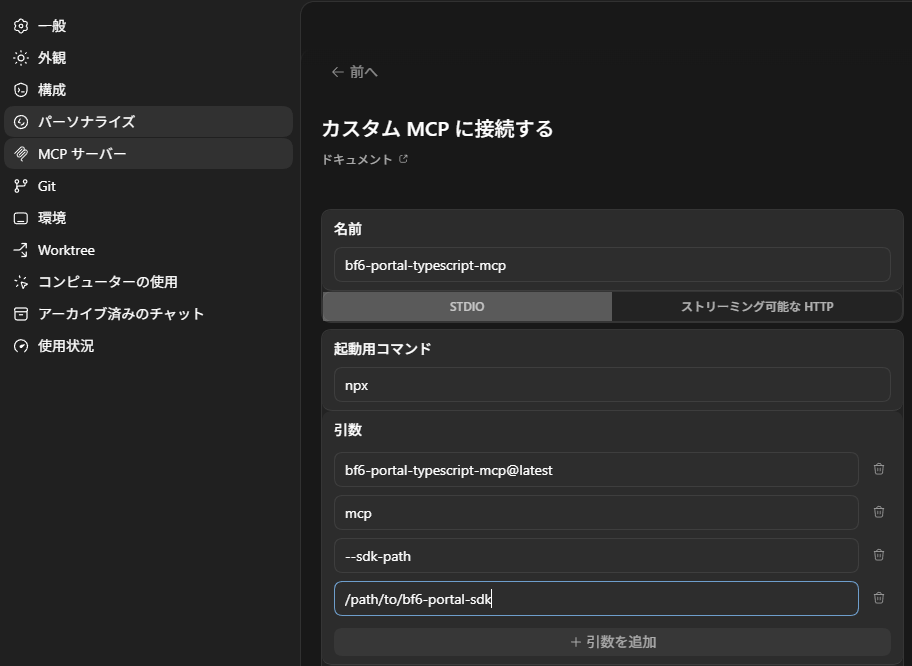
Replace /path/to/bf6-portal-sdk with the location of your Portal SDK.
As a guide, specify the location where you can find code/types/mod/index.d.ts.
After setup, you are ready if bf6_portal_typescript_mcp is available in the Codex tool list.
Checks When It Does Not Work
If it does not work after setup, check the following in order.
- Whether
npxis available. - Whether the folder specified by
--sdk_pathcontainscode/types/mod/index.d.ts. - Whether you restarted Codex App after changing the settings.
- Whether
bf6_portal_typescript_mcpappears in the Codex tool list. - Whether the server name is short and easy to recognize.
If the server name is hard to understand, the AI may not know which MCP server to use.
OpenAI's Docs MCP explanation also recommends explicit instructions to the AI or writing the instruction in AGENTS.md when you want a specific MCP server to be used.
Also Check Codex App Settings
In Codex App Settings, you can adjust not only MCP, but also appearance, personality, and custom instructions.
If you want to use Japanese, adding a custom instruction like the following can keep explanations in Japanese while preserving code and logs.
Please explain in Japanese.
Keep code, function names, and logs in their original English.
If code, function names, and logs are translated into Japanese too, the result may no longer be usable in Portal.
A safe split is: explanations in Japanese, code and API names in English.
4 The First Request to Give AI
In the first request, describe the phenomenon you want to create.
You can leave the code details to AI, but you should provide the goal, conditions, and available tools.
Write a BF6 Portal TypeScript program that spawns the "Apple_01" object in front of a player when they spawn.
The bf6_portal_typescript_mcp server is available, so if there is anything you do not know about Portal, use that MCP server to look it up.
This request provides three pieces of information.
- Goal: spawn an object in front of a player when they spawn.
- Object to use:
Apple_01. - How to investigate: use MCP if any Portal API details are unclear.
If you already know the map, include it from the start.
The map is Mirak Valley.
If the RuntimeSpawn candidate for Apple_01 differs by map, check it with MCP before choosing one.
When asking AI to write code, do not only say "write the code."
Also say, "Look up any Portal API you are unsure about."
5 It Is Not a Failure If It Does Not Work on the First Try
The Apple may not appear with the first code the AI writes.
Sometimes the AI is wrong, but sometimes the missing piece is simply Portal loading state or real in-game timing.
The important thing is not to stop at "I cannot see it."
Ask the AI to add verification code like this.
- Add
console.logtoOnGameModeStarted. - Show a notification in the upper-right of the screen.
- Add
console.logtoOnPlayerDeployed. - Log the spawn position.
For example, add a check like this to OnGameModeStarted.
export function OnGameModeStarted(): void {
    console.log("AppleInFront: OnGameModeStarted");
    mod.SetSpawnMode(mod.SpawnModes.AutoSpawn);
    mod.DisplayNotificationMessage(mod.Message("AppleInFront loaded"));
}
If AppleInFront loaded appears in the upper-right of the screen, the code is being loaded by Portal.
If it does not appear, suspect the registered Script.ts or the built dist/Script.ts before suspecting the Apple coordinates.
6 Give Logs to AI and Ask for a Fix
Portal logs appear in a location like this.
%LOCALAPPDATA%\Temp\Battlefieldâ„¢ 6\PortalLog.txt
When something does not work, give this log to the AI.
The actual log matters more than a vague impression.
Bad example:
The Apple does not appear. Please fix it.
This does not tell whether the problem is loading, an event not firing, a coordinate mistake, or the wrong object.
Good example:
The Apple does not appear.
`%LOCALAPPDATA%\Temp\Battlefieldâ„¢ 6\PortalLog.txt` only contains this log:

[UTC 2026-04-30 23:38:28] Mod started

Please modify the code so we can confirm whether Portal loaded it and whether the event is firing.
If needed, use bf6_portal_typescript_mcp to look up the Portal API.
With this information, the AI can decide that the first thing to check is whether the code is being loaded.
7 Provide State and Phenomenon Together
Sometimes the code is loaded, but the Apple still does not appear.
The map is Mirak Valley, so Tungsten should be correct.
Here is the log.
Personally, the "0, -0.3499999940395355, 2" value looks suspicious.
It does not look like a global coordinate.

[UTC 2026-04-30 23:47:31] Mod started
[UTC 2026-04-30 23:47:48] QuickJS: console.log: AppleInFront: OnGameModeStarted
[UTC 2026-04-30 23:47:48] QuickJS: console.log: AppleInFront: OnPlayerDeployed
[UTC 2026-04-30 23:47:48] QuickJS: console.log: Apple spawn position: 0, -0.3499999940395355, 2
This is a very useful way to report the situation.
The AI can split the situation into pieces.
OnGameModeStartedis running.OnPlayerDeployedis also running.Apple spawn positionis being logged.- But the coordinate looks close to the origin.
- The soldier position or facing direction may not be ready immediately after deployment.
In this case, let the AI make changes like these.
- Make
OnPlayerDeployedasync. - Use
await mod.Wait(...)before reading soldier state. - Use
GetPositionas the basis instead ofEyePosition. - Log
Player position,Player eye position,Player facing direction, andApple spawn position. - Put the wait time in a constant so it is easy to change.
Humans do not need to perfectly identify the cause.
Even observations like "this value looks suspicious" or "this does not look like a global coordinate" help the AI choose a direction for investigation.
8 Complete Example: Spawn an Apple in Front of the Player
For spawning Apple_01 on Mirak Valley, the completed code looks like this.
It waits three seconds after deployment, reads the player's position and facing direction, and spawns a slightly larger Apple two meters ahead.
const APPLE_DISTANCE_METERS = 2.0;
const APPLE_VERTICAL_OFFSET_METERS = 0.2;
const APPLE_SCALE = mod.CreateVector(3, 3, 3);
const APPLE_ROTATION = mod.CreateVector(0, 0, 0);
const SOLDIER_STATE_DELAY_SECONDS = 3.0;

function getAppleSpawnPosition(player: mod.Player): mod.Vector {
    const playerPosition = mod.GetSoldierState(player, mod.SoldierStateVector.GetPosition);
    const facingDirection = mod.Normalize(mod.GetSoldierState(player, mod.SoldierStateVector.GetFacingDirection));

    return mod.Add(
        mod.Add(playerPosition, mod.Multiply(facingDirection, APPLE_DISTANCE_METERS)),
        mod.CreateVector(0, APPLE_VERTICAL_OFFSET_METERS, 0)
    );
}

function logVector(label: string, vector: mod.Vector): void {
    console.log(`${label}: ${mod.XComponentOf(vector)}, ${mod.YComponentOf(vector)}, ${mod.ZComponentOf(vector)}`);
}

export function OnGameModeStarted(): void {
    console.log("AppleInFront: OnGameModeStarted");
    mod.SetSpawnMode(mod.SpawnModes.AutoSpawn);
    mod.DisplayNotificationMessage(mod.Message("AppleInFront loaded"));
}

export async function OnPlayerDeployed(eventPlayer: mod.Player): Promise<void> {
    console.log("AppleInFront: OnPlayerDeployed");

    await mod.Wait(SOLDIER_STATE_DELAY_SECONDS);

    logVector("Player position", mod.GetSoldierState(eventPlayer, mod.SoldierStateVector.GetPosition));
    logVector("Player eye position", mod.GetSoldierState(eventPlayer, mod.SoldierStateVector.EyePosition));
    logVector("Player facing direction", mod.GetSoldierState(eventPlayer, mod.SoldierStateVector.GetFacingDirection));

    const spawnPosition = getAppleSpawnPosition(eventPlayer);
    logVector("Apple spawn position", spawnPosition);

    mod.SpawnObject(
        mod.RuntimeSpawn_Tungsten.Apple_01,
        spawnPosition,
        APPLE_ROTATION,
        APPLE_SCALE
    );

    mod.DisplayNotificationMessage(mod.Message("Apple spawned"), eventPlayer);
}
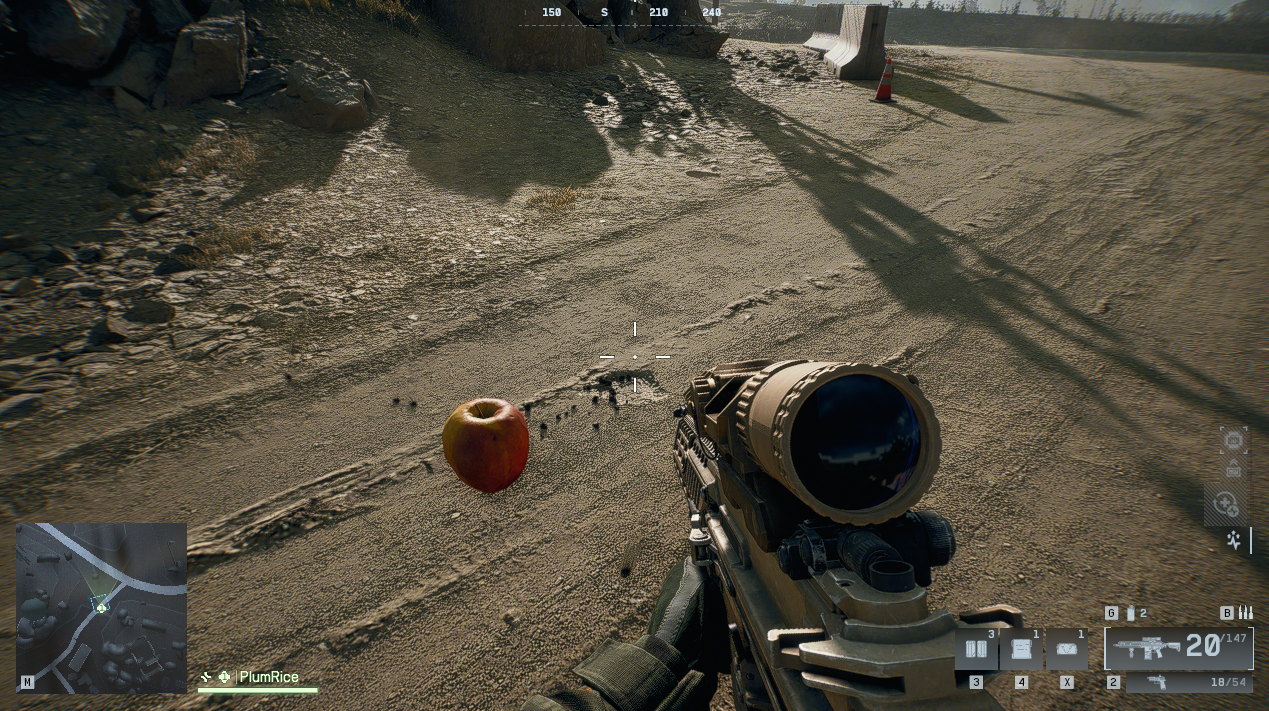
If it succeeds, the Apple appears in front of the deployed player.
9 Information Template to Give AI
When asking AI to fix Portal code, the following format speeds up the conversation.
Goal:
I want to spawn Apple_01 in front of a player when they spawn.

Environment:
The map is Mirak Valley.
bf6_portal_typescript_mcp is available, so please look up unclear Portal APIs.

Current state:
The code has been registered in Portal.
The Apple is not visible in-game.

Log:
The contents of `%LOCALAPPDATA%\Temp\Battlefieldâ„¢ 6\PortalLog.txt` are as follows:

...

Suspicious point:
The spawn coordinate is `0, -0.3499999940395355, 2`, so it does not look like a global coordinate.

Request:
Please add logs to isolate the cause and make the necessary code changes.
This format works with Codex and with other AIs.
You do not need to give the AI a perfect theory.
Give it the goal, state, logs, and suspicious points.
10 Common Beginner Stumbling Points
AI Does Not Use MCP Even Though It Is Configured
Even if a tool is available, the AI will not always choose the best one automatically every time.
When Portal API details are unclear, explicitly write "use MCP to look it up" in your request.
bf6_portal_typescript_mcp is available.
If you are unsure about Portal APIs or enums, check them with MCP before writing code.
If writing this every time is annoying, it is also useful to write the same policy in the project's AGENTS.md.
I Cannot Read the English Error Message
You do not need to force yourself to translate error messages.
Paste the error into AI as-is, and ask for the cause and next checks in Japanese.
The following error appeared.
I am not good at English, so please explain the cause and check steps in Japanese.
However, keep code and function names in English.

...
If you shorten the error too much, the cause may disappear.
Even when the log is long, keep the first error, the last error, and the operation you performed.
Codex Replies in English
Specify Japanese answers in Codex App Settings or custom instructions.
However, also write that Portal code, API names, logs, and file names should remain in English.
The part that can be Japanese is the explanation.
If the inside of the code is translated into Japanese, it can break when copied.
Rate Limits Feel Scary
OpenAI rate limits are measured across multiple dimensions such as request count and token count, and they also vary by model.
fast is not a mode for using tokens carelessly.
Because replies are fast, it becomes easy to send many requests in a short time.
Also, if you paste long logs or long code in full every time, token usage grows and the limit can feel close.
If that feels scary, split the work like this.
- Paste only the log sections that seem relevant first.
- Do not ask for a large fix all at once; ask "first, just identify the cause."
- Do not paste the full code every time; focus on what changed since last time and the error that appeared.
- Do not repeat the same explanation again and again; organize it as goal, phenomenon, log excerpt, and request.
Fast modes are useful, but it is safer not to think of them as saving modes.
11 Notes for This Workflow
- It is fine to assume AI will write the code.
- Humans provide the goal, phenomenon, and logs.
- Get the logs from
%LOCALAPPDATA%\Temp\Battlefieldâ„¢ 6\PortalLog.txt. - In environments where MCP is available, ask AI to look up unclear Portal APIs.
- Even without MCP, the conversation style of providing logs and phenomena is the same.
- If it does not work, isolate in this order: loading, event firing, coordinates, Prefab.
- The in-game result is the final judgment. Do not treat the AI's explanation alone as completion.
Conclusion
- Portal TypeScript code can largely be left to AI.
- The human job is to provide what they want, what happened, and what appeared in the logs.
- BF6 Portal TypeScript MCP works as a dictionary that lets AI inspect the Portal SDK.
- Codex App setup is one example of using MCP, and the basic coding conversation works with other AIs too.
- If you provide the goal, state, logs, and suspicious points, the fix loop with AI becomes much faster.